
Configure the form › In the workspace
Settings
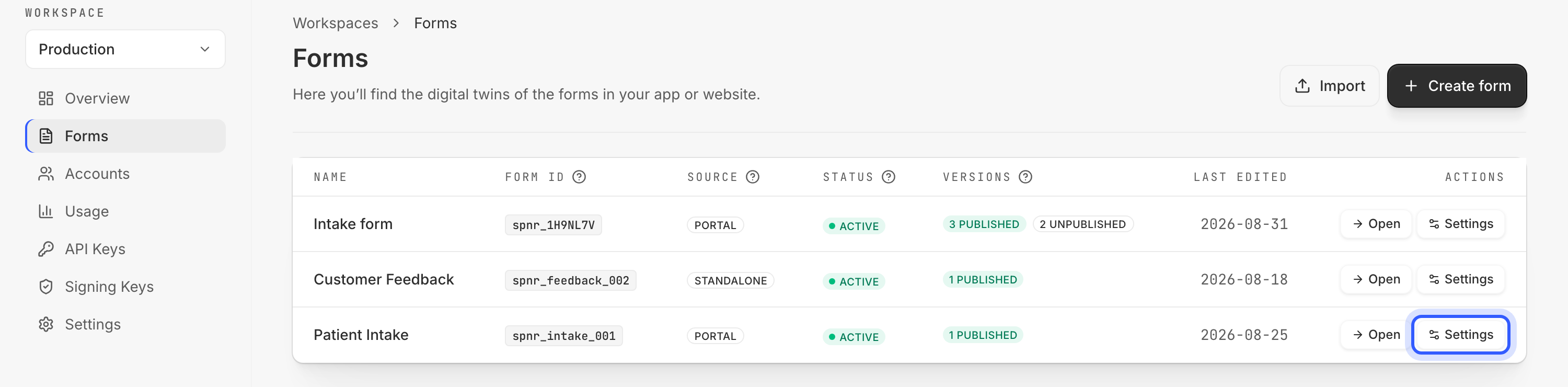
A form's settings hold what belongs to the form as a whole rather than to one of its versions: its name, whether it is active, its quotas, and the actions that copy it out. Open them from Forms, where every row ends with Settings, or from the Settings tab beside Define, Engineer and Integrate once you are on the form. None of it is required to go live — a form works with the defaults; tweak them when you need to.
Name
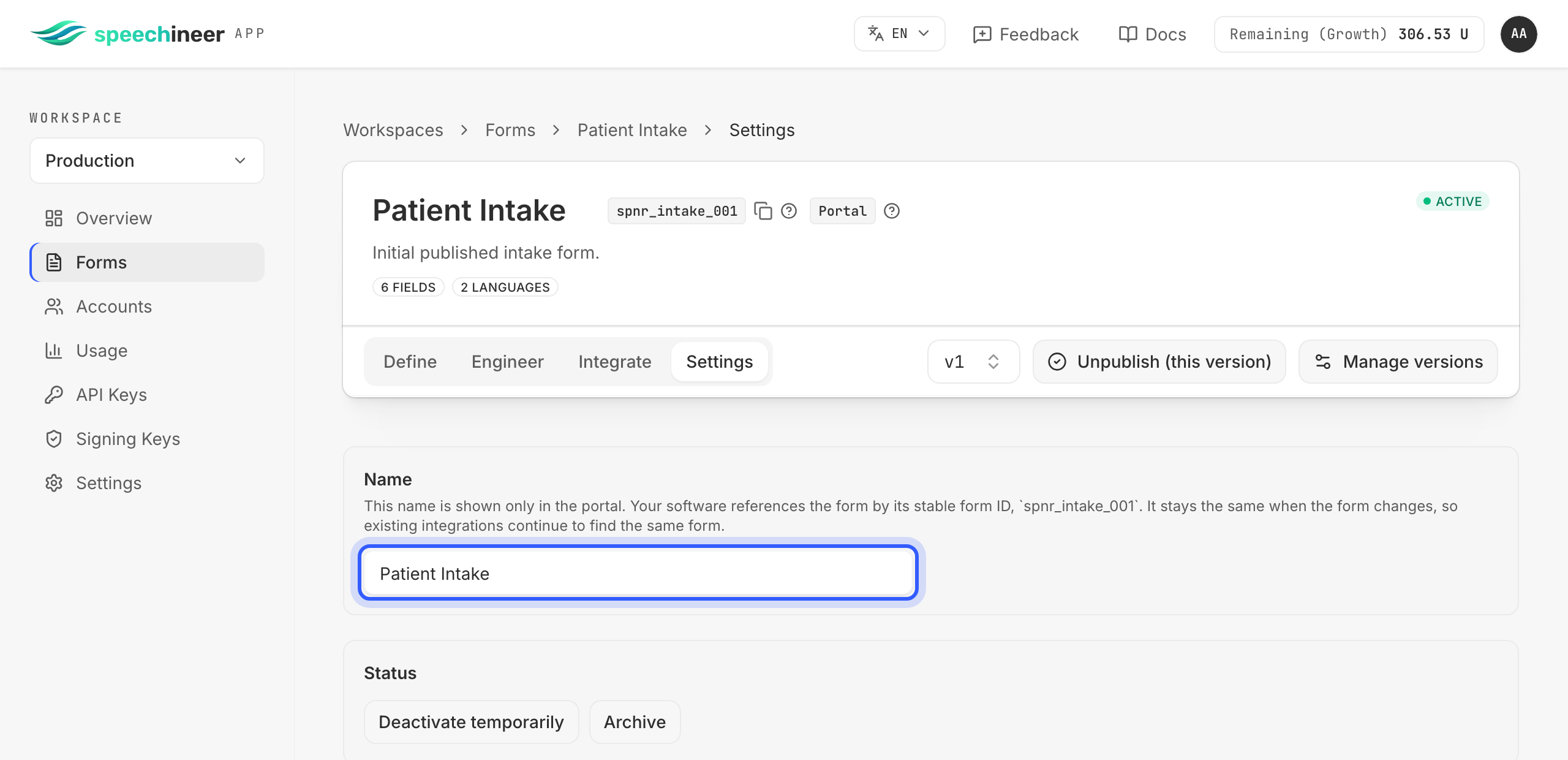
The name the workspace shows for the form. Your software never uses it: it names the form by its form ID, shown beside the title, which stays the same however often you rename — so rename freely, existing integrations keep finding the same form.
Status
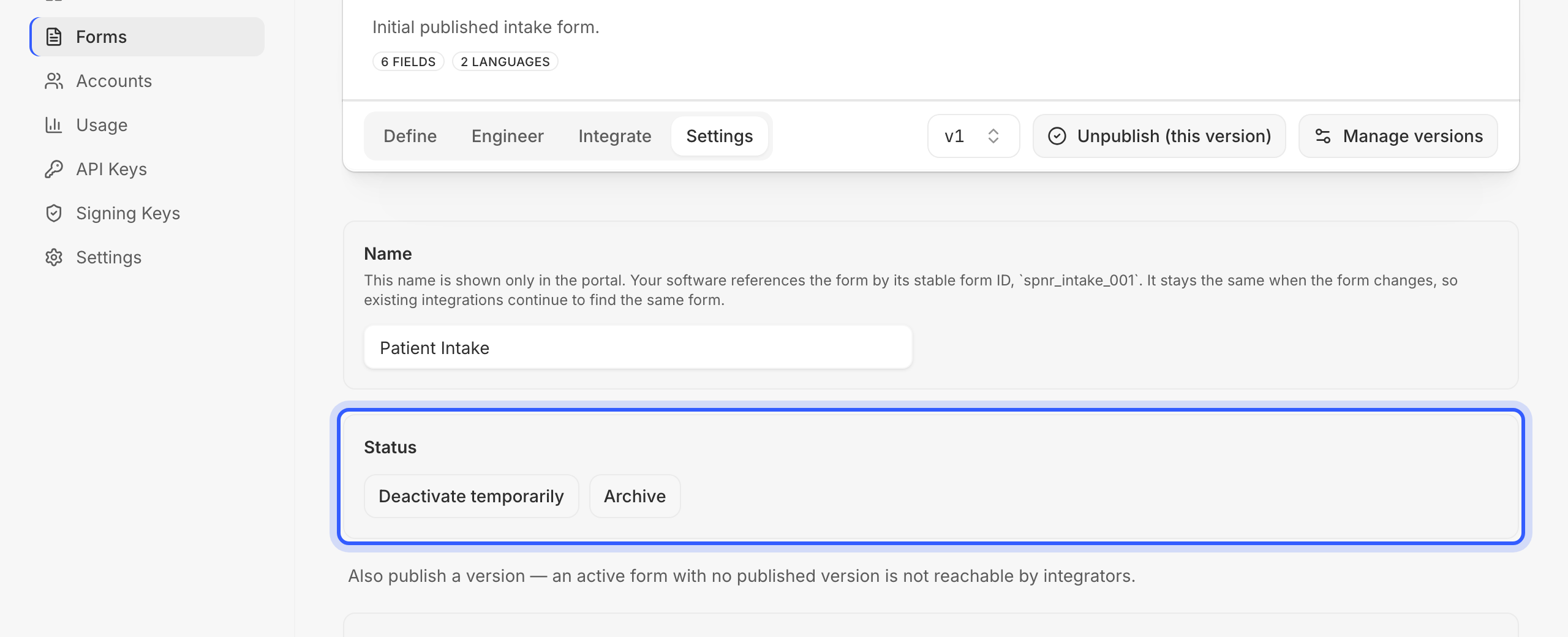
Deactivate temporarily pauses the form — sessions that name it fail until you activate it again — and can be reversed. Archive is final: the form and all its versions freeze and stay readable, and Export still works. A form that has never been used offers Delete instead of Archive.
Note
Quotas
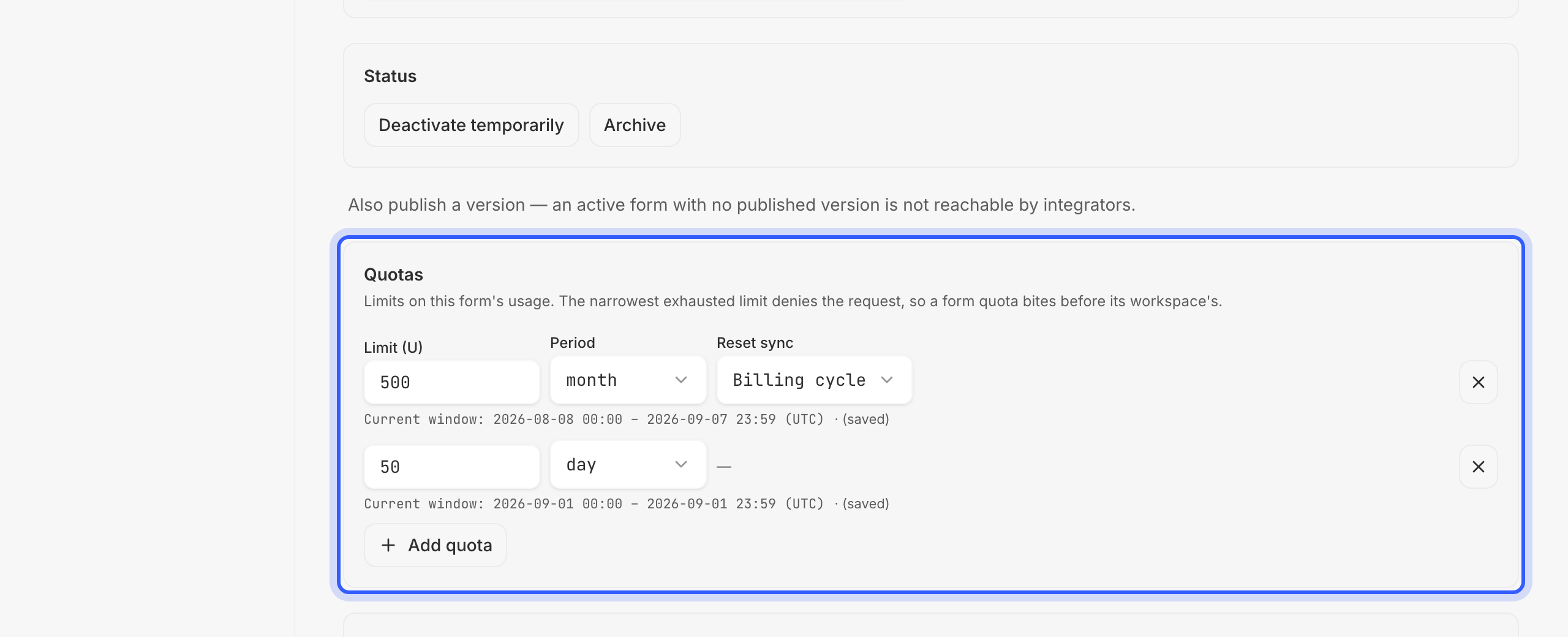
A quota is a limit — a number of units this form may spend — within a period: a day, a week, a month, a year, or its whole lifetime (total). For a weekly, monthly or yearly quota you also choose whether the period follows the calendar or your billing cycle; a daily or total quota has no such choice. You can set several quotas on the same form at the same time — a monthly budget and a daily brake, say. Every session has to fit within all of them: as soon as any one of them is used up, sessions are refused until that quota's period starts again, however much the others still have left.
A form quota covers the form as a whole — every version and every language together. The form above carries two: 500 units a month on the billing cycle and 50 units a day. A session that would cross either fails with FORM_QUOTA_EXCEEDED.
Additional information in
Actions
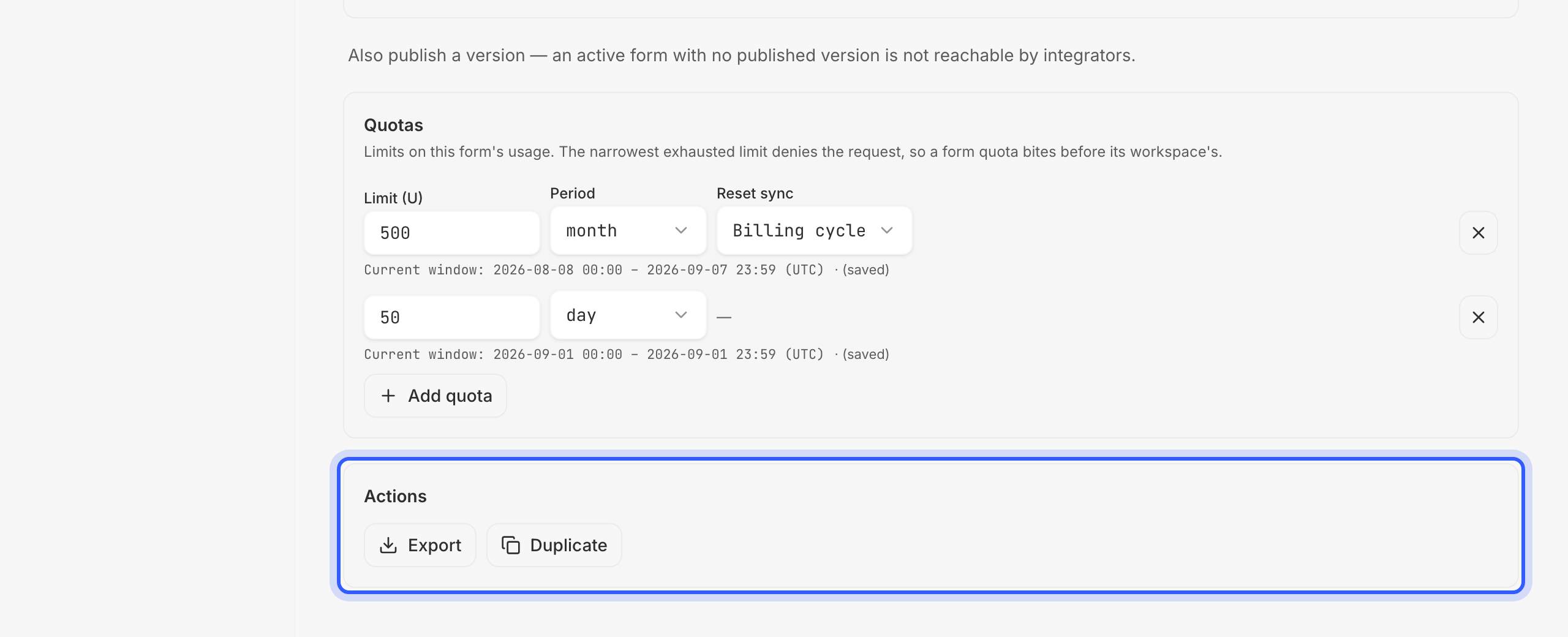
Export downloads the form as JSON — when the form has several versions, pick which one's fields the file carries. It is the same file Import on the Forms page accepts, so it doubles as a backup and as the way to move a form to another workspace; its structure is described in Configure the form › In the workspace › Define the form › JSON structure: import and export. Duplicate creates a new form in this workspace from this one — also the way to pick up an archived form again.