Configure the form › In the workspace
Overview
Configure the form in your workspace so that your code only has to name it to use Speechineer's features. Creating one is three steps, plus optional settings.
1. Define the form
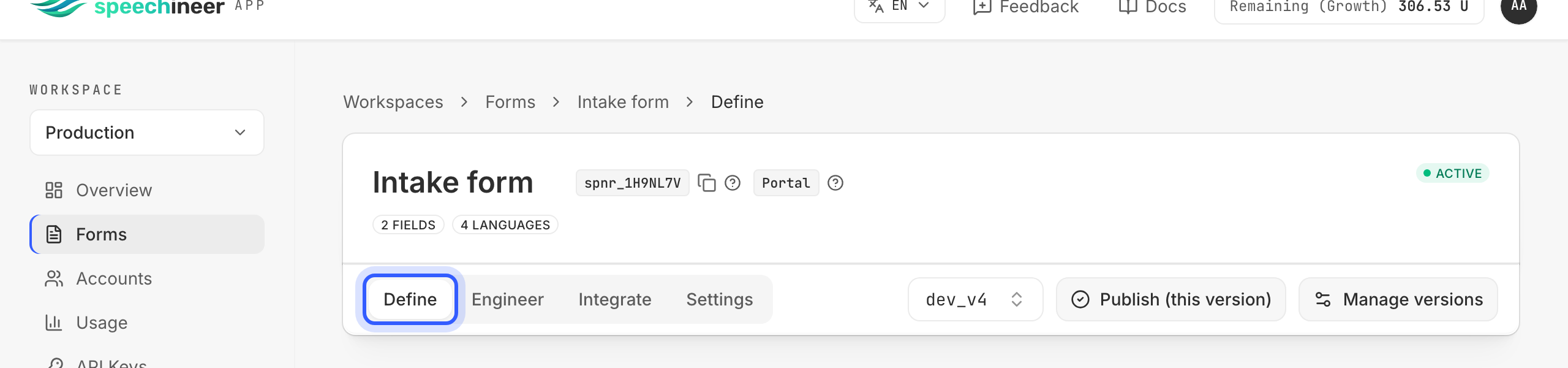
Define is the tab where you shape the form: one field per input your form has, each with the id your code already uses, a label, and a type — plus the options of a choice field or the range of a slider. It is also where you save the result as a version and where you import a form you already have in your codebase, so nothing is retyped. The ids you set here are the contract with your code: recognized values come back keyed by them.
2. Engineer the extraction
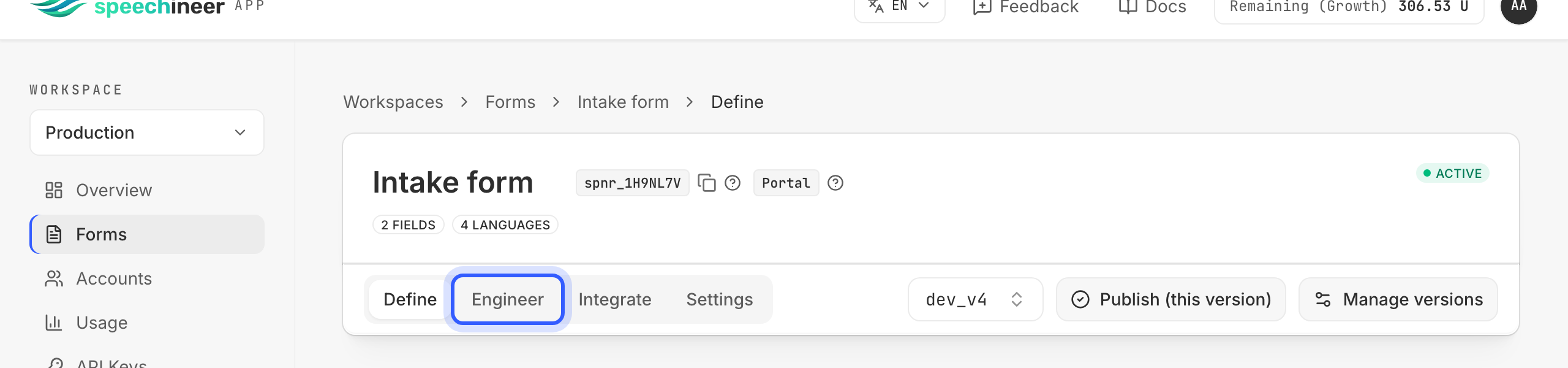
Engineer is the tab where you decide how speech becomes values. You write the prompts — a system prompt for transcription, one for extraction, and one prompt per field — for each language the version supports, then test them against your own voice until every field lands the way your code expects. A prompt edit is a workspace change, not a release of your app.
3. Tweak the settings (optional)
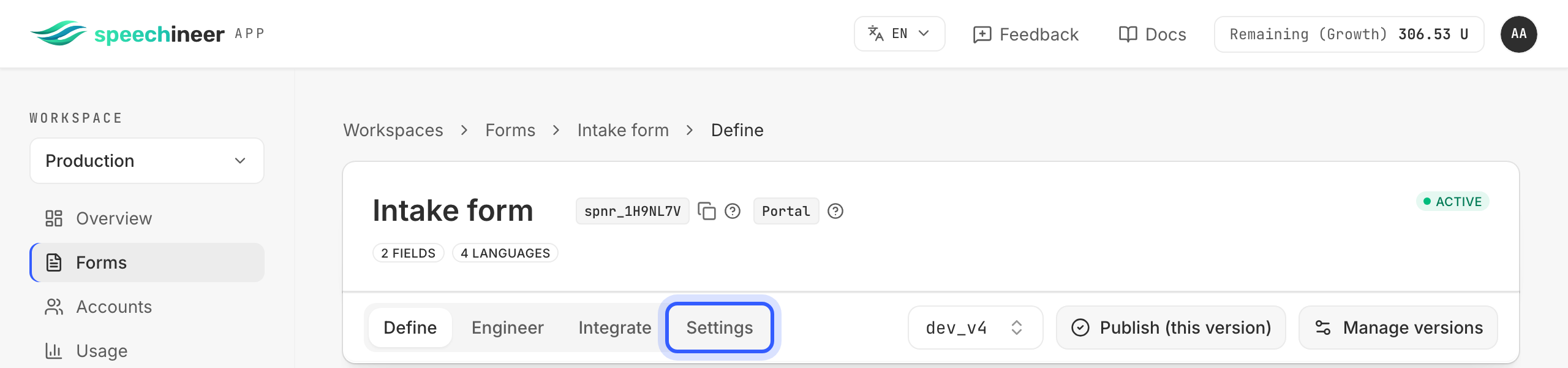
Settings is the tab for what belongs to the form as a whole rather than to one version: its name, whether it is active, its quotas, and the actions that copy it out. It is optional — a form goes live with the defaults, and you come back here when a form needs its own quota or a better name.
4. Publish
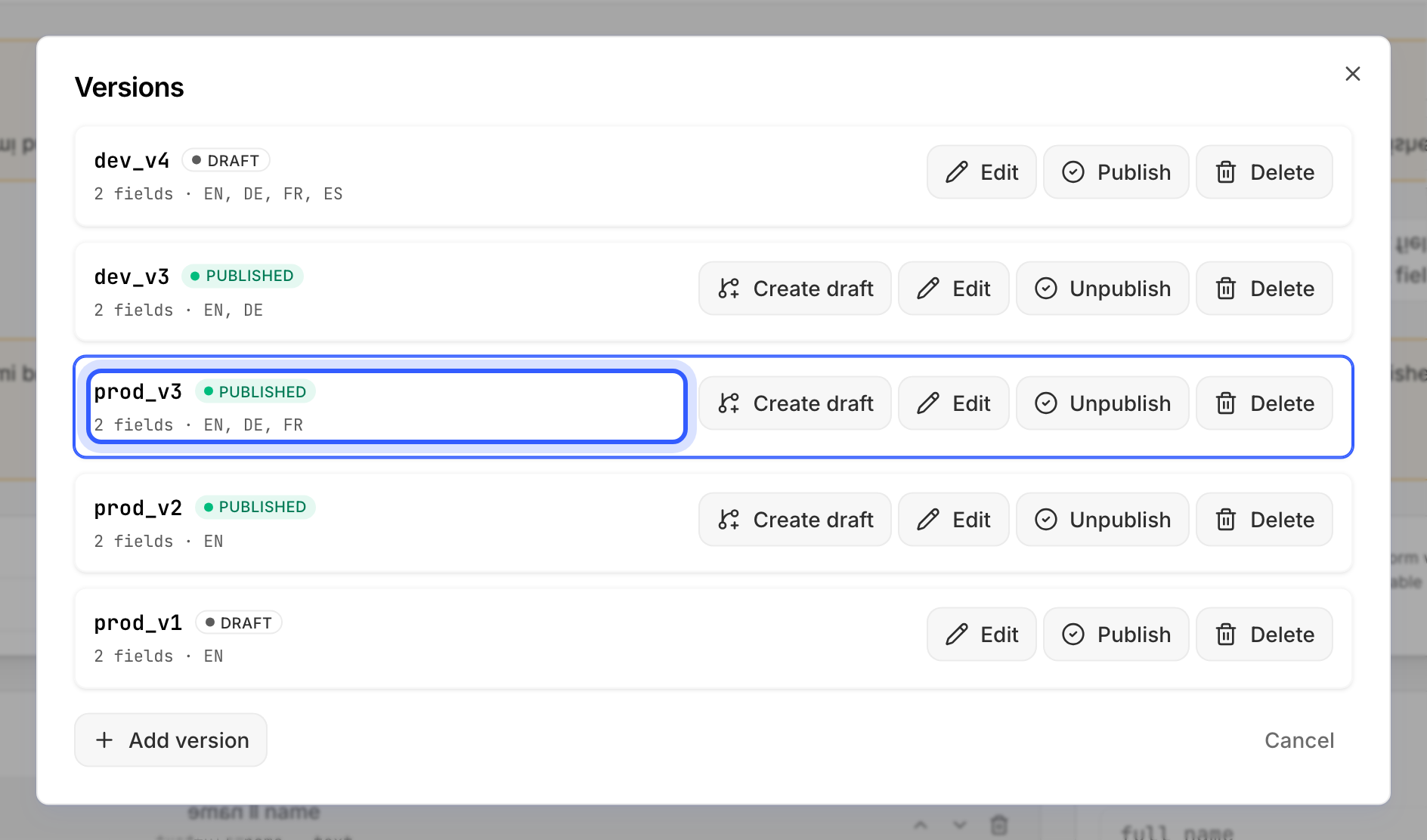
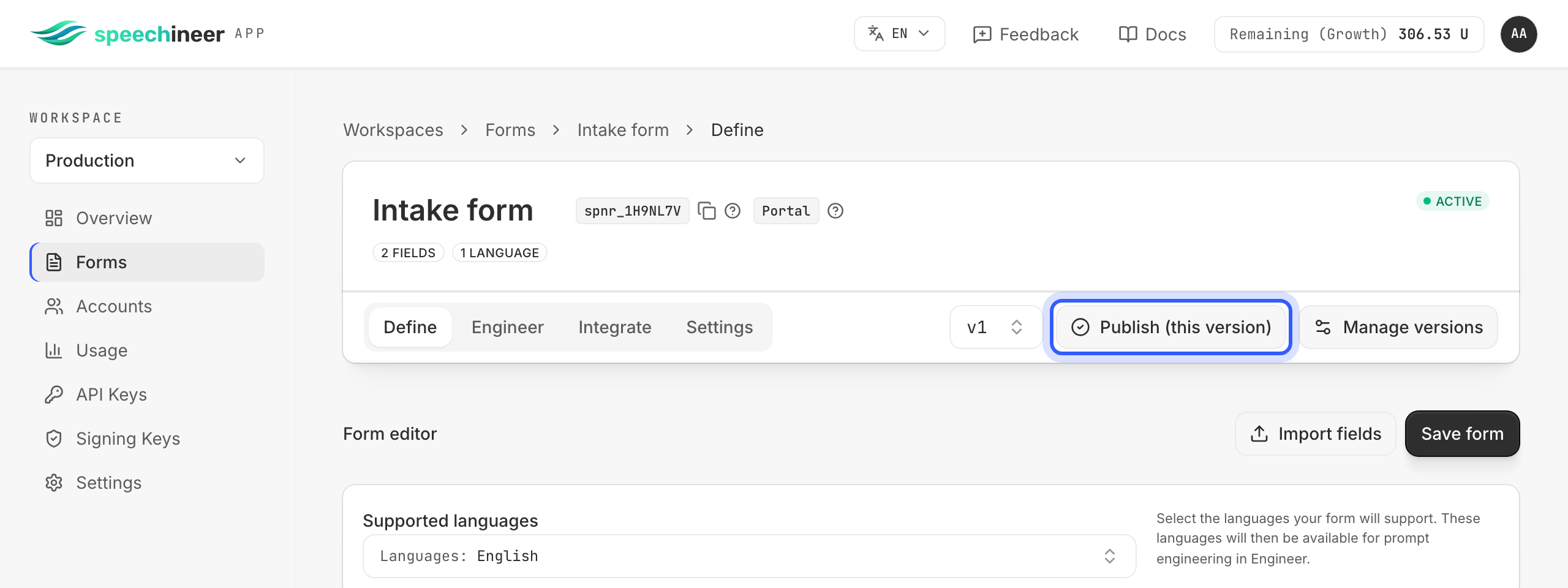
Publishing is what turns a saved version into one your app can use. It happens from the form's header — Publish (this version) — or from Manage versions, one version at a time.
Warning
FORM_VERSION_NOT_PUBLISHED — nothing is served from a draft, however complete it is.State of a version
- Draft — what saving creates. Editable in Define and Engineer, serves nobody.
- Published — serves sessions and is immutable. To change anything, create a draft from it and publish that; your integration keeps pinning the version by its key (
version: "v1"), so you iterate on the draft while production keeps serving. - Unpublish takes a published version back to draft without deleting it. Sessions naming it fail until it is published again.
Select the right version and language
A version is published as a whole: every language it supports goes live together, and there is no way to publish just one of them. If the languages of a form are going to diverge — different fields, prompts reworked on their own schedule — create one version per language, so each can be published and revised on its own. The table shows which of the form's parts follow the version and which follow the language.
| Differs per version | Differs per language | |
|---|---|---|
| The fields — ids, types, options, ranges | ✓ | ✗ |
| The field prompts | ✓ | ✓ |
| The transcription and extraction system prompts | ✓ | ✓ |
| The model configuration | ✓ | ✗ |
| The list of supported languages | ✓ | ✗ |
| Draft or published | ✓ | ✗ |
So one field set serves every language of a version, while the prompts are written per language (English, German, French, Spanish, Italian, Dutch, Portuguese, Polish). A session that asks for a language the version does not support cannot start.
Note
spokenLanguage option — optional, and independent of the form's language (Integrate the SDK › Implementation › Wire up the voice session › spokenLanguage).Tip
Example: publishing prod_v3
Take a form with the versions prod_v1, prod_v2, prod_v3, dev_v3 and dev_v4, where prod_v3 supports English, German and French. Publishing prod_v3 publishes all three languages at once: the form is now reachable in English, German and French under prod_v3. Nothing else moves — prod_v2 (English) and dev_v3 (English, German) were already published and stay reachable in their languages, prod_v1, unpublished earlier and so a draft again, stays unavailable, and dev_v4 stays a draft.