
Configure the form › In the workspace
Define the form
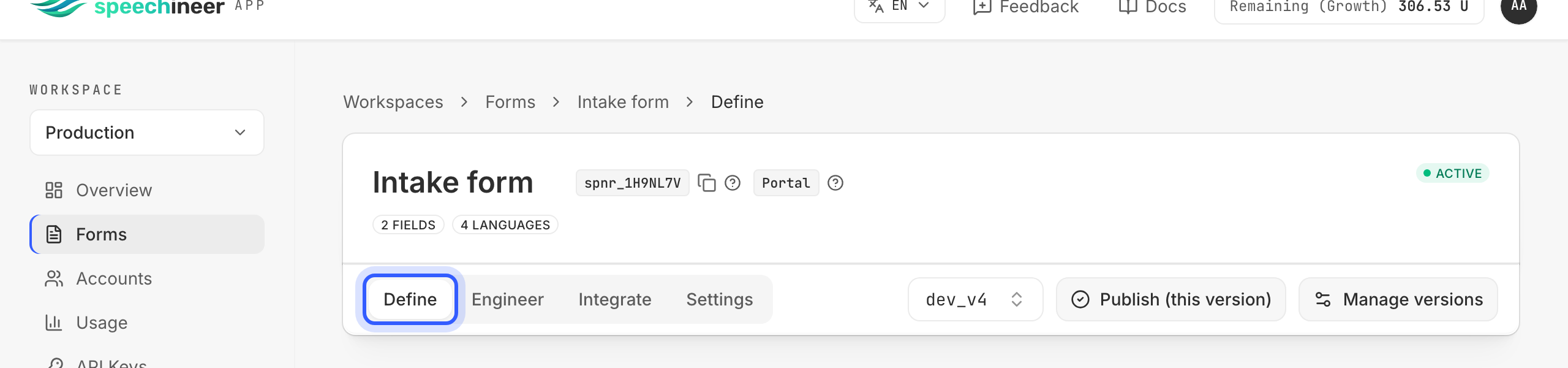
The Define tab is where you shape the form: create it — or import one you already have — and add its fields. The prompts that drive the extraction come afterwards, in Engineer.
Note
Create a form
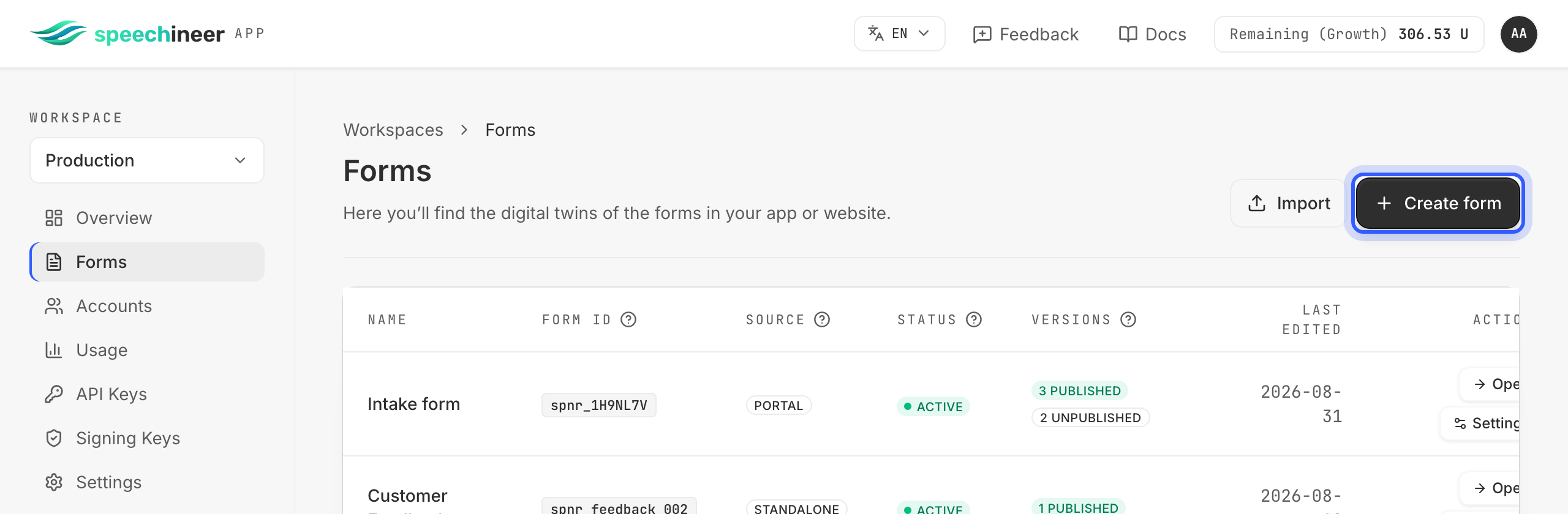
Before you can open a form's Define tab, the form has to exist. Open Forms in your workspace and click Create form: give it a name — people see it, your code never does — and you land in the editor with an empty draft.
From then on, four things identify the form — three of which your code passes to start a session:
- Its name — for people, shown in the workspace.
- Its generated key (
spnr_…) —form.keyin your code. - A version, each with its own key (
v1,v2, …) —form.version. The fields belong to the version; the first one is created with the form. - A language among those the version supports —
form.language. The prompts are written per language.
Note
Import a form
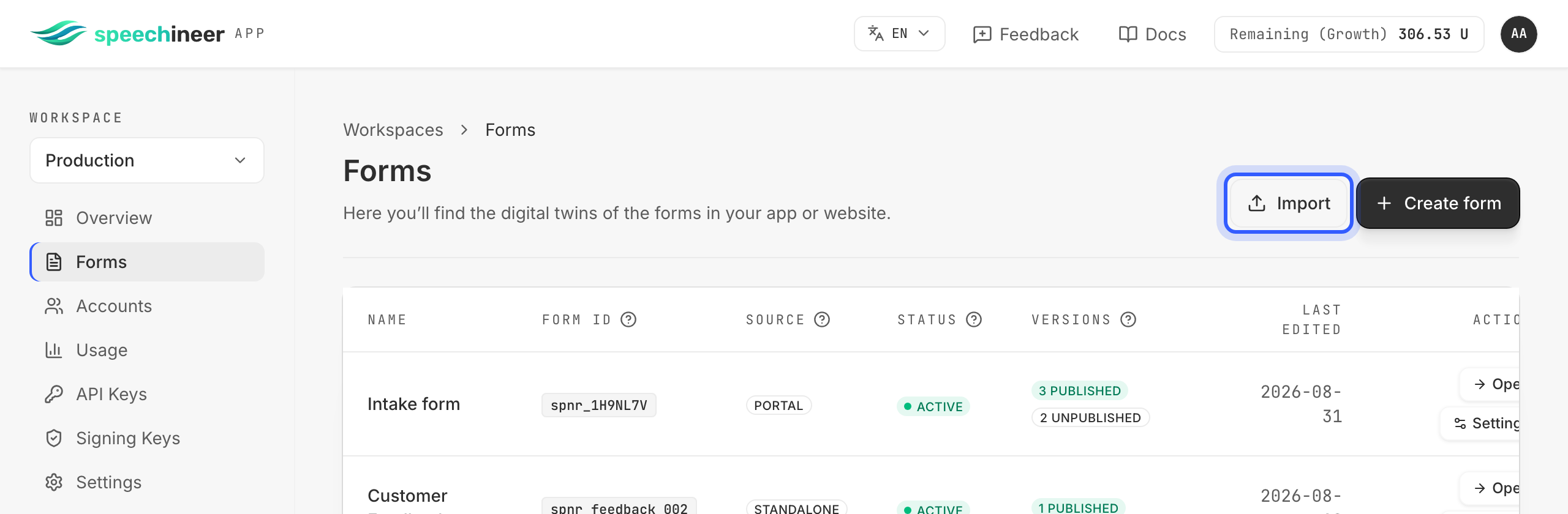
You can also import a form you already have instead of creating it field by field: Import, next to Create form, takes a JSON of the form's fields, so a form that already exists in your application never has to be retyped. It accepts a file or pasted JSON and creates a draft version. The import carries no prompts: you write them yourself in the Engineer tab afterwards, and publish the version, like for any other form.
Note
JSON structure: import and export
One document per form: a name and a fields array, in the order your form shows them. Per field, field_id is required — imports never invent ids, they are your contract — and everything else falls back to a sensible default: label (the id), type (text), options and range (null unless the type needs them) and code_defined_config (false). The same document comes back out of Export.
{
  "name": "Patient intake",
  "fields": [
    {
      "field_id": "full_name",
      "label": "Full name",
      "type": "text",
      "options": null,
      "range": null,
      "code_defined_config": false
    },
    {
      "field_id": "insurance",
      "type": "select",
      "options": ["None", "Public", "Private"]
    },
    {
      "field_id": "severity",
      "type": "slider",
      "range": [0, 10]
    }
  ]
}
Generate the JSON from your existing form
Paste this prompt into your AI coding agent together with your form — a component file, a screenshot, a schema — and it produces the import JSON above, with your real field ids:
You are converting an existing form into a Speechineer form-import JSON. The form is
whatever I give you as context: a screenshot, an HTML/JSX/Vue/Angular/Svelte template, a
form-library schema, a database table, or a description. If I gave you a repository, find
the form and read the real field names.

Return one JSON document per form: {"name": "...", "fields": [...]} — with per field:
- "field_id" (required): the identifier my application already uses for that field — the
  name/id attribute, the form-control key, the column name. Copy it EXACTLY, including
  camelCase; never tidy it into another style. It must start with a letter and contain
  only letters, digits or underscores. Only invent an id (from the label, snake_case)
  when I gave you no code.
- "label": the human name of the field.
- "type": one of text, textarea, email, phone, url, integer, float, checkbox, date, time,
  datetime, select, multiselect, slider. The control wins over the meaning: an
  <input type="range"> is a slider even when it counts something.
- "options": the exact stored values for select/multiselect (the value, not the display
  label) — required for those types, at least one. Otherwise null.
- "range": [min, max] for slider — required for it. Otherwise null.
- "code_defined_config": true ONLY when the values are not fixed at design time (options
  from my database, or that change per user or language). Still include representative
  options/range — the form is tested against them in the workspace; at runtime my code
  supplies the real ones. When torn, use false.

Do not include prompts in the JSON — the import carries the form's shape only; extraction
prompts are written in the workspace afterwards. Instead, list under the JSON one suggested
extraction prompt per field (one sentence: what to pull out and how to resolve what a
speaker says — units, formats, relative dates), for me to paste into the workspace.

Skip fields nobody would speak: passwords, one-time codes, card numbers, captchas, file
uploads. Name what you skipped. Make reasonable choices instead of asking questions, and
list the assumptions you made.
Add a field
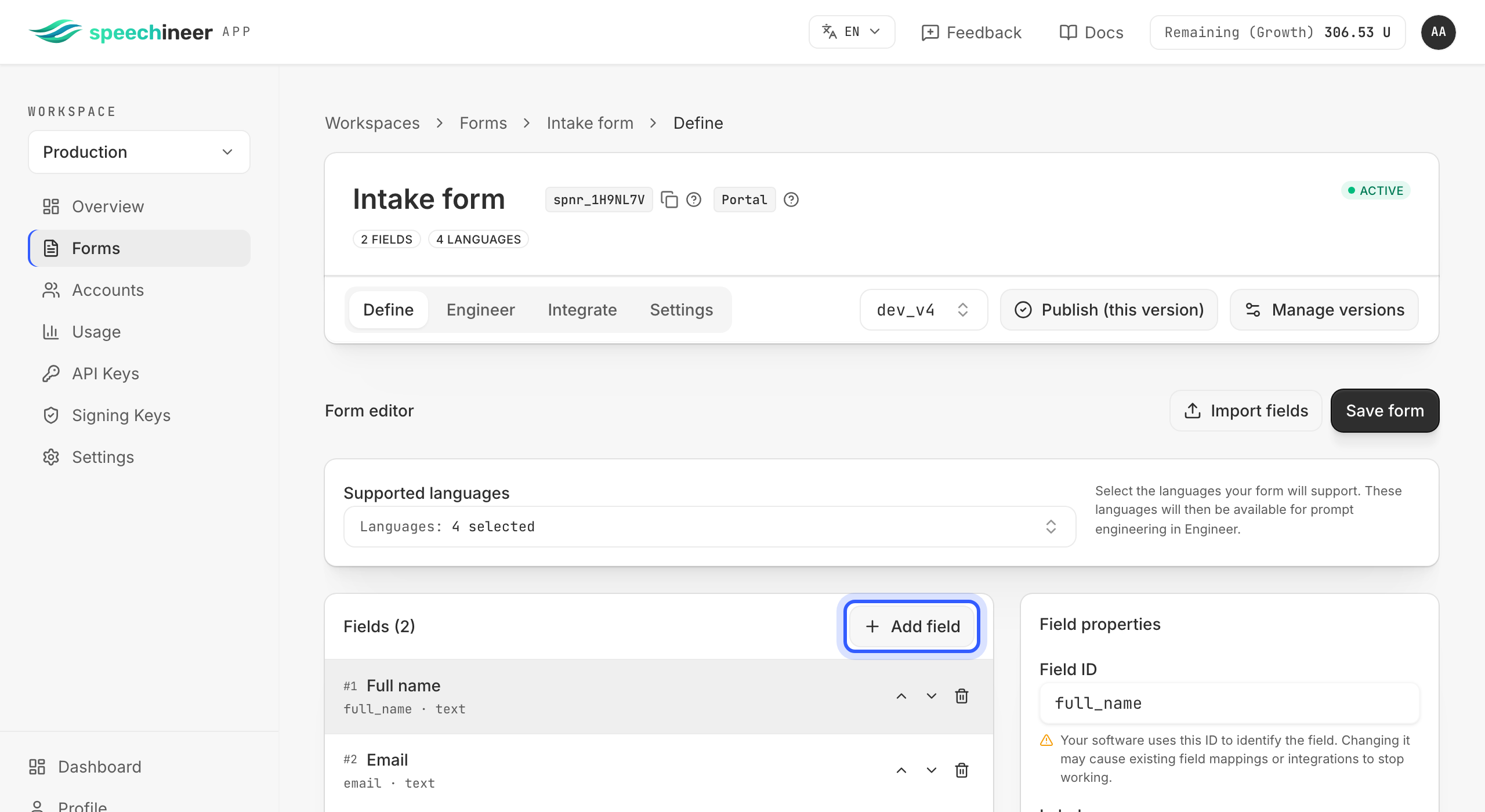
Add one field per input your form has. The order of the list is the order your form shows, and one field set serves every language of the version. Each field has an id, a label, a type and, for choice and slider fields, its options.
Tip
Field ID
The field id is how recognized values reach your code: they arrive keyed by it, exactly as configured. Ids must start with a letter and continue with letters, digits or underscores (any script; case-sensitive; at most 128 characters), and be unique within a version.
Warning
full_name, guestEmail — and then treat them as frozen: changing an id in a later version breaks every integration still writing to the old one, with no error on either side.Label
The label is the field's human name in the workspace — what you and your colleagues read in the editor and in the Engineer tab. It never changes what your application renders, and it is not what the extraction reads: that is the field's prompt, written per language in Engineer.
Type
The type says what kind of value the field holds, and so what the extraction is allowed to return for it:
| Type | Holds | Required configuration |
|---|---|---|
| text | a short free-text value — a name, a city | — |
| textarea | longer free text — notes, descriptions | — |
| an email address | — | |
| phone | a phone number | — |
| url | a link | — |
| integer | a whole number — age, count, years | — |
| float | a decimal — amount, weight, temperature | — |
| checkbox | yes or no — consent, an opt-in | — |
| date | a calendar date | — |
| time | a time of day | — |
| datetime | a date with a time | — |
| select | one value from a fixed list | options — at least one |
| multiselect | any number of values from a fixed list | options — at least one |
| slider | a number on a bounded scale | range — [min, max] |
Options
select and multiselect take a list of options, a slider a range. The options are the exact strings your application expects back — recognized values are matched against them and the match is returned verbatim.
Warning
private and displays “Private insurance”, the option must be private: what comes back is the option exactly as written here, and a display text would reach your code as a display text.A choice or slider field can be marked set by code: its options or range then come from your application at session start — options loaded from your database, day names in the language being spoken — instead of the configuration saved in the workspace. You mark it with Set by your code in the field's editor. The workspace keeps its own options or range for the field — representative values that the Engineer tab tests against — and your application replaces them when a session starts. Typical uses: lists that live in your data (products, departments, locations), values that differ per user, or values that differ per language, such as day names.
Warning
Additional information in